> For the complete documentation index, see [llms.txt](https://simulator-golf-tour.gitbook.io/simulator-golf-tour-docs/llms.txt). Markdown versions of documentation pages are available by appending `.md` to page URLs; this page is available as [Markdown](https://simulator-golf-tour.gitbook.io/simulator-golf-tour-docs/sgt-pages/team-course-records.md).
# Team Course Records
The team course records page displays the current team course record holders for current site mode (standard or autoputt). Each row displays:
* Course name
* View course scorecard :memo: button
* Selected tee and format record information
* If logged in, a button to attempt the course record for that tee and format
Team course records
## Format/Tee Select
The dropdown in the middle of the table header changes the displayed course record results based on the selected team format and tee box.
Team format and tee box selector
***
## Sort/Filter/Search
Use the search, filter and sort features to find course records. The search input will search for course names and course record holder usernames that contain the search text. Click the filter :filter: button to limit the displayed results based on course difficulty and/or style. The sort dropdown allows you to sort the displayed records by course name, course update date, course record score and course record date.
Search, filter and sort functions
***
## Course Record Information
Each course record displays:
* Team with the current course record
* Date the record was set
* To par score of the record that links to the scorecard for the record
* If logged in, an attempt button to play for the course record for that course and tee box
Team course record information
***
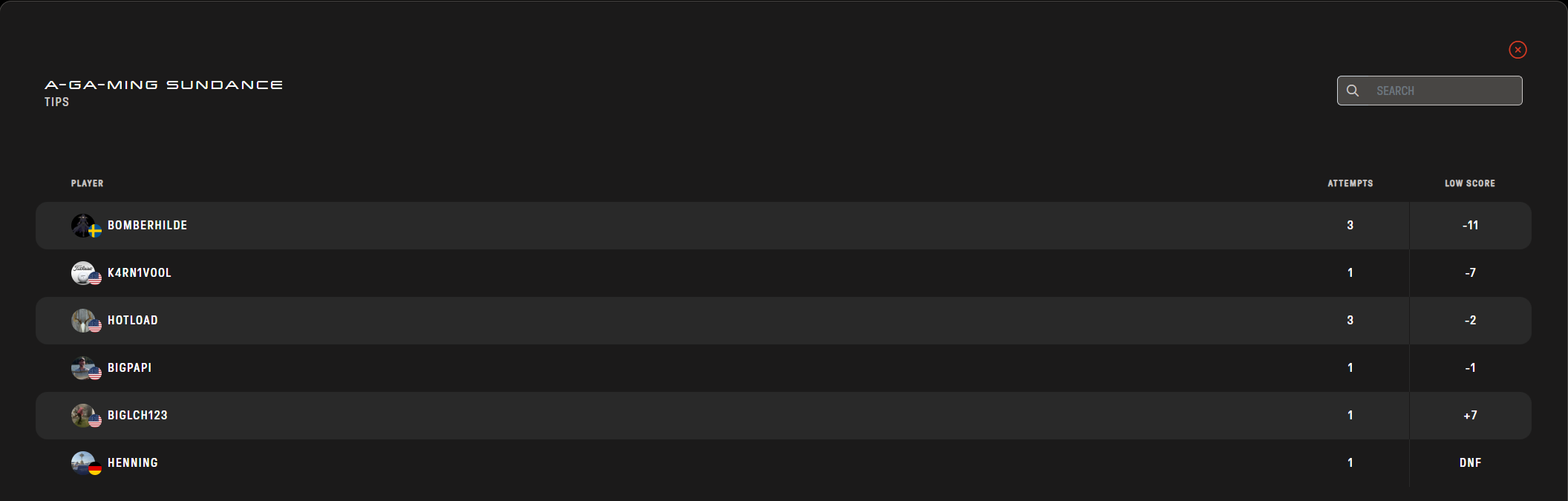
## Course Record Leaderboard
Click on the leaderboard link :trophy: for any course record to see the list of players that have attempted the course record for that course and tee box along with their lowest score achieved.
Course record leaderboard
***
## Attempt a Course Record
Click on the attempt button to create an invite to attempt a course record. A dialog will be displayed to enter the player names for your team. As you type in the player name text boxes, search results of matching player names will be displayed. Select the player name you want from the dropdown. After entering team players, click the INVITE button to send. All invited players must accept the invite before the event is created for your team. Once created, the tournament will be active 3 days.
Invite create dialog
{% hint style="danger" %}
Invites auto expire after 1 day.
{% endhint %}
{% hint style="success" %}
To play along side another team in two person formats, enter the other players in the opponents inputs. All players on both teams must accept before the event is created.
{% endhint %}
***
## View Invites
Click the red INVITES button to view your active team course record invites. From this view you can accept or decline other's invites as well as cancel invites that you have created. All invites display the course name, team format and team members. Members that have accpeted the invite are displayed with a checkmark next to their name.
Team course records invites
{% hint style="warning" %}
Invites that have been accepted by all players cannot be deleted or modified.
{% endhint %}